
Download Logitech SetPoint – Free, Secure, Customizable Mouse & Keyboard Software for Windows
Logitech SetPoint is a powerful, free personalization tool designed for users of Logitech mice and keyboards. Whether you're a professional, student, or gamer, this software helps you optimize your workflow by customizing mouse buttons, F-keys, and hotkeys. With Logitech SetPoint, you can assign multiple functions to a single click, significantly speeding up task execution and improving efficiency.
The app supports advanced features like customizable scrolling speed, cursor trails, and automatic game detection that adjusts settings on the fly. It’s especially beneficial for users with 5-button mice or those who rely on tilt-wheel functionality in productivity apps like Excel and PowerPoint. While SetPoint doesn’t support Logitech G-series gaming mice (which require Logitech Gaming Software), it remains a solid choice for non-gaming Logitech peripherals.
The software is compatible with Windows 10, 8.1, and 7, and is regularly updated to ensure system compatibility and security. Download Logitech SetPoint today and unlock full control over your input devices with a clean, intuitive interface.
Key Features of Logitech SetPoint
Logitech SetPoint offers a comprehensive suite of customization options that elevate your computing experience. One of its standout features is the ability to reassign mouse buttons beyond the standard left, right, and middle clicks. For example, you can program the side buttons on a 5-button mouse to perform actions like copying text, opening the Task Manager, or launching your favorite application with a single press. This level of personalization drastically reduces the number of keystrokes and clicks needed to complete daily tasks, making it ideal for power users and professionals.
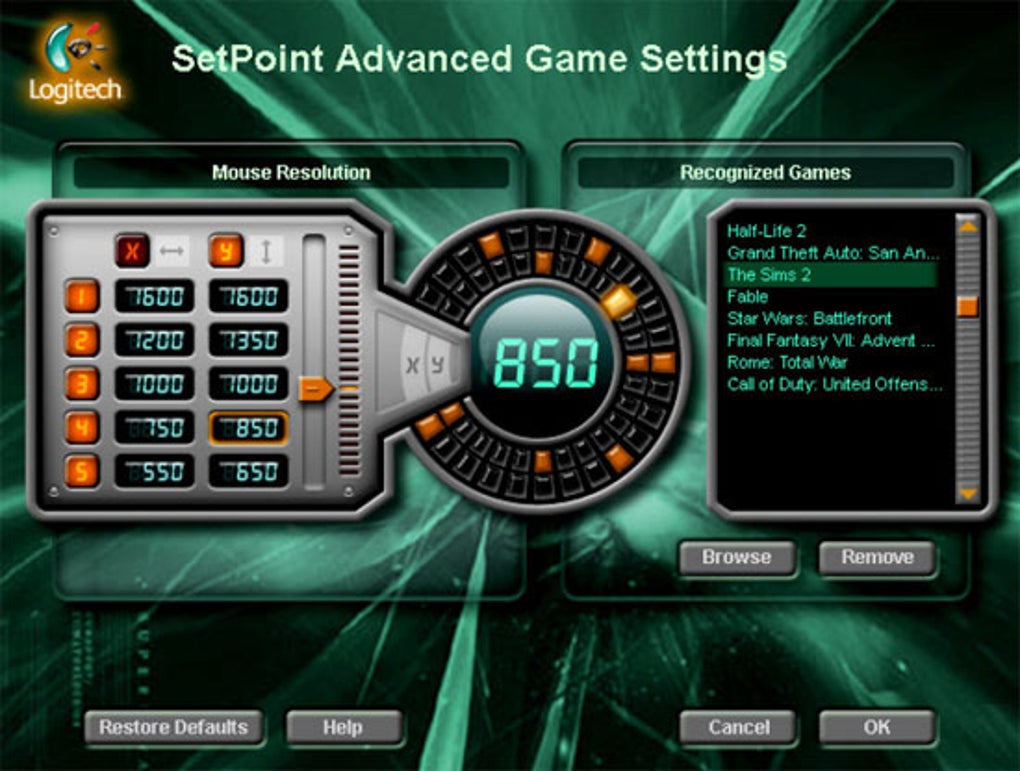
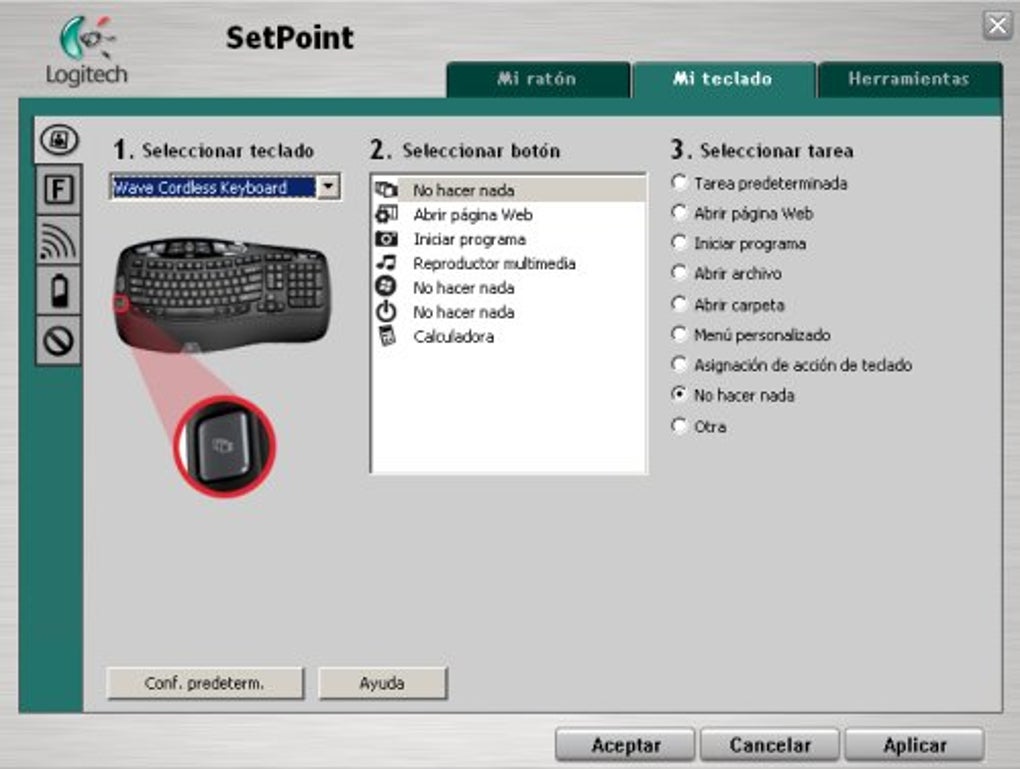
Another valuable feature is the customizable F-key functionality. Users can reassign the F1–F12 keys on their keyboard to trigger specific commands, such as launching a web browser, muting audio, or opening the Control Panel. This is particularly useful for those who frequently use shortcut keys and want to streamline their workflow. Additionally, SetPoint includes intelligent game detection, which automatically switches to pre-defined settings when a game is launched. This means you can maintain optimal mouse sensitivity, acceleration, and button assignments tailored specifically for gaming without manual adjustments.
The software also enhances cursor behavior with options like adjustable scrolling speed, pointer trails, and cursor size customization. These settings help improve visibility and control, especially for users with visual impairments or those working on large displays. Furthermore, SetPoint provides system-level alerts, such as battery life notifications for wireless devices and status indicators for Caps Lock and Num Lock. All these features are accessible through a clean, user-friendly GUI that makes configuration straightforward, even for beginners. Whether you're using a Logitech mouse with a tilt wheel for spreadsheet navigation or a multi-button mouse for multitasking, SetPoint delivers a seamless and productive experience.
Installation & Usage: How to Get Started with Logitech SetPoint
Installing Logitech SetPoint is a straightforward process, though it may take several minutes due to the software’s comprehensive setup and driver integration. To begin, visit the official Logitech website and download the latest version of SetPoint compatible with your operating system. The download is free and secure, ensuring you avoid third-party malware or bundled software. Once downloaded, run the installer and follow the on-screen prompts. During installation, the software may temporarily disable your mouse and keyboard as it configures system-level drivers—this is normal and temporary.
After installation, launch SetPoint from the Start menu. The interface is clean and intuitive, with clearly labeled sections for mouse, keyboard, and system settings. Begin by selecting your device from the list of connected Logitech peripherals. From there, you can customize each button, F-key, or hotkey by choosing from a wide range of actions, including system commands, application launches, and macro sequences. For example, you can assign a mouse side button to open a specific folder, copy a predefined text snippet, or switch between virtual desktops.
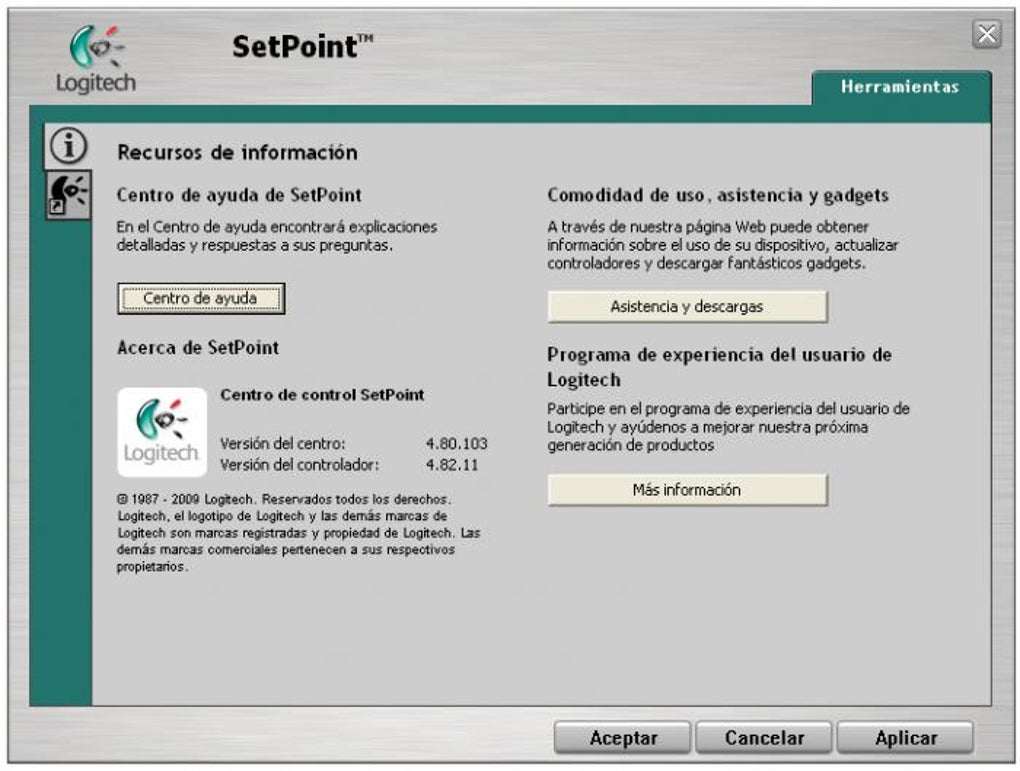
SetPoint also allows you to create profiles for different scenarios—such as work, gaming, or creative projects—so you can switch settings with a single click. To use these profiles, simply select the desired one from the dropdown menu. The software remembers your preferences, so you don’t have to reconfigure everything every time. For advanced users, the built-in help guides and tooltips provide detailed explanations for each setting, ensuring a smooth learning curve. With just a few minutes of setup, you can unlock a highly personalized computing environment that boosts both speed and comfort.
Compatibility & System Requirements
Logitech SetPoint is specifically designed for Windows users and supports the following operating systems: Windows 10 (64-bit and 32-bit), Windows 8.1, and Windows 7 (SP1). It is not compatible with macOS, Android, or iOS devices, so users on these platforms will need to explore alternative software like Logitech Options or Logitech Gaming Software. The software requires a minimum of 256 MB RAM and 100 MB of free disk space, though a modern system with 4 GB RAM or more will provide optimal performance.
SetPoint works best with a wide range of Logitech peripherals, including multi-button mice, mice with tilt wheels, and keyboards with programmable F-keys. It’s particularly effective for users with Logitech MX series mice, wireless keyboards, and ergonomic models. However, it’s important to note that SetPoint does not support Logitech G-series gaming mice, which require the dedicated Logitech Gaming Software (LGS) for full functionality. If you own a G-series device, attempting to use SetPoint may result in limited or no customization options.
For users with older Logitech devices, SetPoint often includes legacy driver support, ensuring compatibility with hardware released over the past decade. The software is regularly updated by Logitech to maintain compatibility with new Windows updates and security patches. This ensures long-term usability and reliability. Always download SetPoint directly from the official Logitech website to avoid potential risks from unofficial sources. With its stable performance and broad Windows support, SetPoint remains a trusted tool for enhancing the capabilities of your Logitech input devices.
Pros and Cons of Logitech SetPoint
- Pros:
- Free to download and use with no hidden costs
- Intuitive, clean user interface for easy customization
- Supports multi-button mice and tilt-wheel functionality
- Customizable F-keys and hotkeys for faster workflows
- Automatic game detection with profile switching
- Regular updates for system compatibility and security
- Provides battery life and status alerts for wireless devices
- Cons:
- Does not support Logitech G-series gaming mice
- Installation can be slow and temporarily disables input devices
- Only available for Windows (no Mac, Android, or iOS support)
- Limited advanced macro recording compared to third-party tools
- Some users report occasional conflicts with other software
Frequently Asked Questions (FAQ)
How do I download Logitech SetPoint?
Visit the official Logitech support website, navigate to the "Software & Drivers" section, search for "SetPoint," and download the version compatible with your Windows OS. The download is free and secure.
Is Logitech SetPoint free?
Yes, Logitech SetPoint is completely free to download and use. There are no subscription fees or premium features.
Can I use SetPoint with my Logitech G mouse?
No, SetPoint does not support Logitech G-series gaming mice. For G-series devices, use Logitech Gaming Software (LGS) instead.
Why does my mouse stop working during installation?
This is normal. SetPoint installs system-level drivers that temporarily disable input devices. The mouse and keyboard will resume working once the installation completes.
Does SetPoint work on Windows 11?
While SetPoint is officially listed for Windows 10, 8.1, and 7, many users report successful operation on Windows 11. However, for full compatibility, consider using Logitech Options for newer devices.
Conclusion: Why You Should Download Logitech SetPoint Today
If you own a Logitech mouse or keyboard and want to maximize its potential, Logitech SetPoint is an essential tool. It transforms your basic input devices into highly personalized productivity machines by enabling advanced customization of buttons, keys, and hotkeys. Whether you're streamlining daily tasks, improving navigation in Excel, or enhancing your gaming setup, SetPoint delivers real value. While it has limitations—such as no support for G-series mice and lack of Mac/Android/iOS compatibility—it remains a reliable, free, and secure option for Windows users.
With its intuitive interface, automatic game detection, and system alerts, SetPoint simplifies complex workflows and boosts efficiency. The regular updates ensure long-term compatibility and security. If you’re looking for a powerful yet accessible way to optimize your Logitech peripherals, download Logitech SetPoint now and take full control of your computing experience.
Download Logitech SetPoint today and unlock the full potential of your mouse and keyboard!







